
Exiled Exchange 2 Not Working: Basic Checks
Begin with the official requirements because a display or clipboard limitation cannot be repaired by changing trade filters. Path of Exile 2 should use Windowed Fullscreen or Windowed mode. Exclusive Fullscreen is unsupported. GeForce NOW and similar services are unsupported when they do not forward game clipboard data to the local overlay.
Quit Exiled Exchange 2 from the system tray, confirm no duplicate process remains, and restart one instance. If Path of Exile 2 runs as administrator, start the overlay at the same privilege level. Otherwise, run both normally. Update GPU drivers when a Vulkan-only problem disappears under DirectX 11 or DirectX 12.
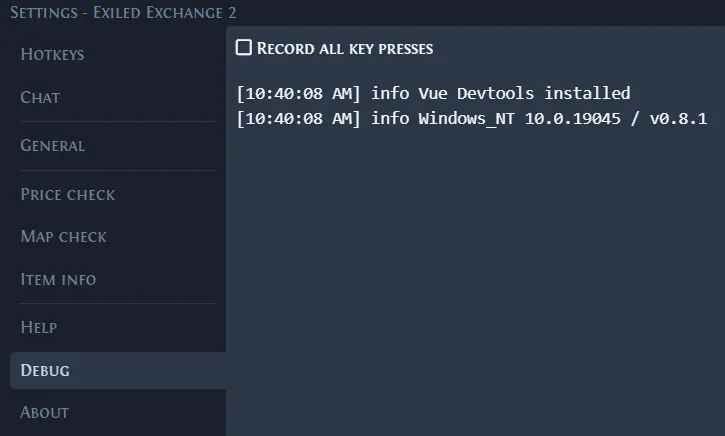
Open Shift + Space and locate the settings and Debug area. If even the overlay does not open, focus on game-window detection, display mode, privileges, and shortcut collisions before investigating league or item data.
- 1
Confirm the current version
Compare the installed version with the latest stable Exiled Exchange 2 release. Trade API and league fixes may require an update.
- 2
Check display and privileges
Switch away from exclusive Fullscreen. Run the overlay as administrator only when the game uses administrator rights.
- 3
Quit duplicate processes
Closing a visible window may leave the tray process running. Quit completely before starting a clean test.
- 4
Inspect the Debug logs
Read the latest entries immediately after reproducing the failure. Note the stage and exact message rather than clearing the logs first.
Nothing happens when you press Ctrl + D
A normal price check depends on the game copying item text. Hover a regular item in inventory, press Ctrl + C, and paste into a temporary plain-text editor. You should see a complete item description with properties and modifiers. If nothing useful reaches the clipboard, Exiled Exchange 2 has no item text to parse.
Global shortcut software can intercept the advanced copy sequence or overlay hotkey. Close GPU utilities, AutoHotkey scripts, capture tools, Discord clips, keyboard managers, and other nonessential tray apps. Test again, then reopen each app separately to identify the conflict.
If clipboard text is complete but the price-check window still does not appear, confirm that the configured hotkey has not changed. Open settings through Shift + Space when possible and assign a temporary shortcut that no other application uses.
The app opens but no item modifiers are available
First confirm that Path of Exile 2 copied the full advanced item description. Some game locations do not put normal item text on the clipboard, including interfaces where the official game itself does not expose the selected object through Ctrl + C. Test a standard inventory item to distinguish an unsupported location from a general parsing failure.
An outdated release or a new league item can also contain data the installed build does not recognize. Update Exiled Exchange 2, reproduce the issue with one item, and preserve the copied text and logs for a report. Remove account identifiers or secrets before posting public diagnostics.
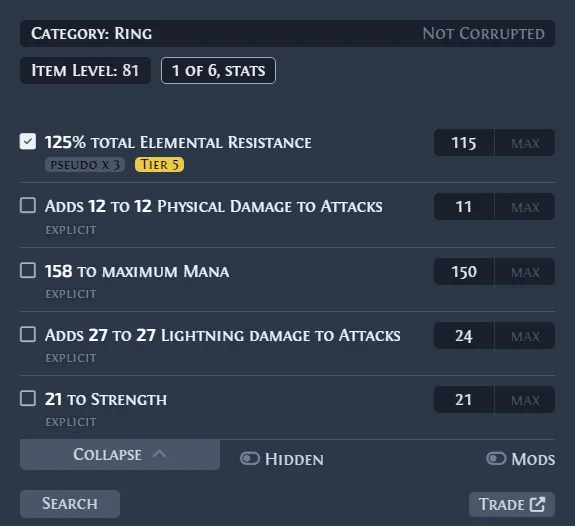
A query can appear empty when filters are overly strict or a parser groups several explicit modifiers into a pseudo modifier. Review the search form carefully before assuming that the item has no searchable stats.
Fix Failed to load leagues and trade service errors
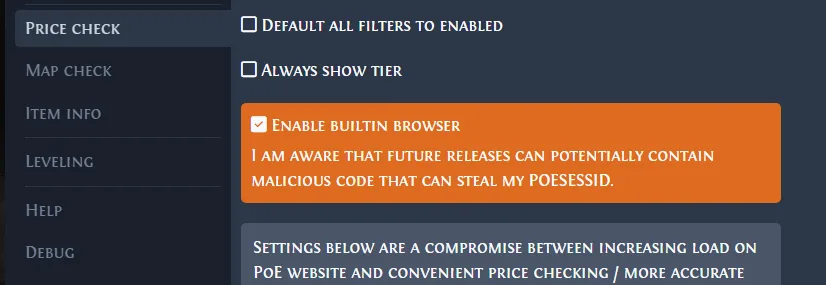
League loading can fail when the Path of Exile trade service or Cloudflare challenges the request. The official troubleshooting guide recommends using the built-in browser to complete the required check, then retrying the league request. Never copy trade cookies into an unrelated website.
If the built-in browser remains blank, restart the PC and check the network path. VPN configuration, DNS behavior, restrictive security software, and temporary trade-site incidents can all affect the request. Try the official trade website in a normal browser and consult the official project issues before repeatedly changing application files.
Do not publish session cookies, authentication tokens, or private league credentials when requesting help. A useful issue report includes the app version, operating system, renderer, approximate time, non-sensitive logs, and whether the official trade site was reachable.
Fix configuration and migration errors
A damaged or incorrectly migrated config.json can stop startup, attach to the wrong game, or produce an invalid JSON error. If you copied settings from Awakened PoE Trade, verify that the destination file under %APPDATA%\exiled-exchange-2\apt-data uses Path of Exile 2 as the saved window title. Editing the original PoE 1 file does not change the Exiled Exchange 2 configuration.
Back up the entire Exiled Exchange 2 data folder before resetting it. Then quit the overlay, rename the folder, and launch the app to generate clean defaults. If the clean configuration works, restore only the settings you understand. If the clean configuration fails identically, the root cause is probably not the migrated JSON.
| Symptom | Likely boundary | Next check |
|---|---|---|
| Overlay looks for PoE 1 | Migrated windowTitle | Change the destination config value to Path of Exile 2 |
| Unexpected token / invalid JSON | Damaged config file | Restore a backup or generate clean defaults |
| Second launch does nothing | Existing tray process | Quit the first instance completely |
| Settings disappeared | Different data folder or Windows account | Confirm the active AppData path before restoring |
| Clean config and migrated config both fail | Display, clipboard, network, or shortcut | Return to logs and the basic checks |
Linux, Wayland, and macOS-specific limits
Linux overlay behavior depends on the desktop session and compositor. Tray icons can be hidden, Wayland can restrict global shortcuts and window overlays, and some Hyprland setups require project-specific workarounds. Use the current AppImage, review open issues in the official repository, and record whether the same behavior occurs under an X11 session before assuming that item parsing is broken.
On macOS, the universal DMG is unsigned and does not support automatic updates. A launch warning or blocked application is different from an in-game overlay failure. Follow Apple's standard Open Anyway flow only after verifying the official GitHub source, then troubleshoot window access and shortcuts separately.
Across all platforms, cloud gaming remains a distinct limitation. If the remote service does not deliver the copied item text to the machine running Exiled Exchange 2, no local configuration can reconstruct it.
- Use the platform asset from the current official Release.
- Record desktop environment, Wayland or X11 session, and compositor on Linux.
- Separate operating-system launch warnings from in-game overlay failures.
- Check global shortcut support before debugging item filters.
- Search the official issue tracker for the exact environment and version.
Prepare a useful support report
When local checks fail, search the official GitHub issue tracker for the exact error. If nothing matches, report one reproducible path with the app version, operating system, renderer, display mode, item location, shortcut, result, and smallest relevant log excerpt.
Avoid vague reports such as 'it does not work.' Also avoid uploading an entire configuration or log archive before checking for secrets. A concise report that shows where the clipboard-to-query chain stops is more actionable than repeated reinstall attempts.
Exiled Exchange 2 Failed to Load Leagues: Check the Request Stage
When the app reports failed to load leagues, reproduce the message once, note the installed version, and read the Debug log before deleting configuration. A temporary trade-service response and a local startup failure can look similar in the overlay but require different next steps.
If leagues load but a trade site request fails, preserve the item text and query boundary and test the official trade service in a normal browser. If neither the overlay nor leagues load, return to display mode, administrator privileges, duplicate processes, and network checks before changing item filters.
- Record the exact error text and the version shown by the app.
- Do not expose account tokens, cookies, or private identifiers in a support report.
- Use the update guide when the installed build is behind the verified release.