
What a PoE 2 trade overlay actually does
A trade overlay is a desktop companion that appears above Path of Exile 2 while you play. It does not inject prices into the game client or read a secret market value from the item image. Exiled Exchange 2 asks the game to copy the hovered item's text, parses the base type, rarity, sockets, quality, level and modifiers, then builds a query for the official trade service.
That distinction matters because the result is only as good as the copied item text and the filters sent with it. A unique item can often be compared quickly by name and variant. A rare item needs judgment: relevant modifiers, roll ranges, item level and open affixes may matter more than a large list of loosely similar offers. The overlay accelerates research; it does not replace valuation knowledge.
Why Exiled Exchange 2 fits the overlay workflow
Exiled Exchange 2 is the PoE 2-focused community fork of the familiar Awakened PoE Trade workflow. The current site data was verified against the official Kvan7 GitHub release v0.15.8 on July 13, 2026. Its documented workflow includes Ctrl + D price checking, Shift + Space widgets, a built-in trade browser, configurable shortcuts and item-specific search forms.
Choose it when you want a local desktop overlay tied closely to PoE 2 item text. Do not confuse it with the official trade website, a stash-value service, a build planner or a bulk currency market. Those tools answer different questions. The overlay is strongest when the item is already under your cursor and you need a fast, editable comparison.
| Need | Best starting point | Why |
|---|---|---|
| One hovered item | Exiled Exchange 2 overlay | Fast parsed filters and in-game comparison |
| Broad market research | Official PoE 2 trade website | More complete manual query controls |
| Whole stash estimate | Dedicated stash valuation service | Batch data rather than one item |
| Build planning | Build planner or database | Skill, passive and equipment modeling |
Set up the overlay and open its settings
Download the installer or portable build from the official release rather than a reposted executable. Match the package to your operating system and verify its filename, size and SHA256 on the download page. The app is documented as unsigned, so an operating-system warning is a reason to verify provenance, not proof that the file is safe or unsafe.
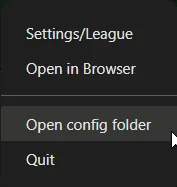
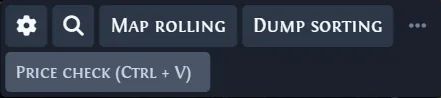
Run Path of Exile 2 in Windowed Fullscreen or Windowed mode. Exclusive Fullscreen prevents a normal desktop overlay from drawing reliably above the game. If the game runs as administrator, Windows may require the overlay to use the same privilege level. Start only one overlay instance, then press Shift + Space and use the toolbar cog to open settings.
- 1
Verify the release
Confirm repository, v0.15.8 tag, filename, size and SHA256 before opening the file.
- 2
Use a compatible display mode
Choose Windowed Fullscreen or Windowed, then restart the game if the overlay was previously hidden.
- 3
Open the toolbar
Press Shift + Space and select the cog button to review hotkeys, league and widgets.
Configure hotkeys without creating conflicts
The default price-check shortcut is Ctrl + D. The widget overlay uses Shift + Space. Both can conflict with chat tools, capture software, keyboard utilities, accessibility software or another PoE companion. Change a shortcut when it is already claimed, but keep the new combination easy to press while the cursor remains over the item.
Test the clipboard before changing many settings. Hover a normal inventory item and press Ctrl + C. If the clipboard receives a complete item description, the game side of the workflow is working. If Ctrl + C fails, changing the price-check key will not fix the underlying clipboard, focus, privilege or remote-desktop problem.
- Test one shortcut change at a time.
- Keep game and overlay privilege levels aligned.
- Close duplicate tray instances before retesting.
- Use a normal inventory item as the baseline test.
Price-check an item and refine the filters
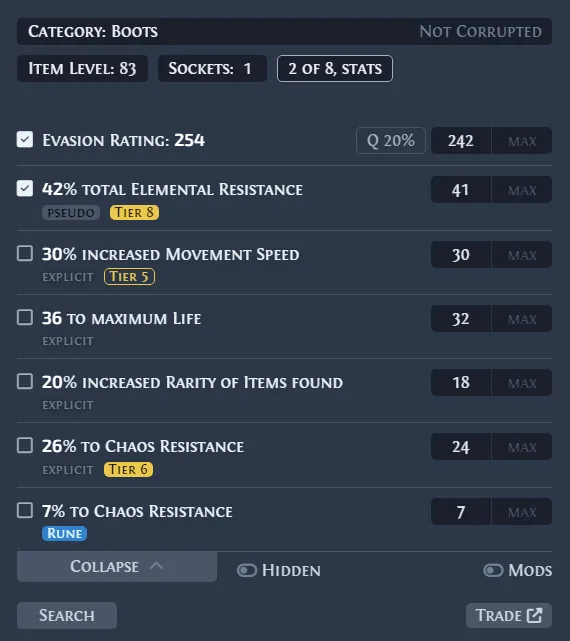
Hover the item and press Ctrl + D. The overlay opens a search window with the parsed item properties and modifiers. Before submitting, confirm the correct base type, rarity, league and item category. For rare equipment, disable low-value modifiers and keep the build-defining stats. Widen exact roll ranges slightly when an overly precise query returns no useful comparisons.
For uniques, verify the variant, sockets, corruption state and important roll ranges. For gems, check level, quality and special versions. For currency or stackable items, use the bulk or exchange workflow when available instead of treating each listing like equipment. Open the full trade search when you need deeper filters or want to inspect seller status and listing age.
- 1
Copy and parse
Hover the item and press Ctrl + D, then confirm the recognized base and league.
- 2
Keep meaningful filters
Select the modifiers that drive demand for the relevant build or item category.
- 3
Compare a price band
Submit the query and compare several recent listings instead of one outlier.
Read listings without accepting a fake market price
The cheapest listing is not automatically the market value. It may be stale, incorrectly priced, unavailable, deliberately undercut or attached to a different variant. Compare a cluster of recent listings, check whether the sellers are online, and look for a stable price band rather than one isolated number.
Rare items require a second pass. Search first for the most important two or three modifiers, then add item level, base, defenses, sockets or open affixes only when they materially affect demand. If the result set collapses to one listing, you may have created an exact-match search rather than a realistic market comparison.
| Result pattern | Likely meaning | Next action |
|---|---|---|
| Many similar listings in one range | Reasonable comparison band | Check age and seller status |
| One very cheap outlier | Possibly stale or bait-priced | Ignore until corroborated |
| No results | Filters may be too exact | Widen rolls or remove weak modifiers |
| Hundreds of unrelated results | Filters may be too broad | Add the build-defining modifiers |
Limits, privacy and account-safety boundaries
Exiled Exchange 2 relies on local clipboard text and trade-service requests. Cloud gaming or remote setups may fail when the clipboard is not forwarded. League-loading errors, trade authentication challenges and service maintenance can also interrupt searches even when the overlay itself launches normally. Use the built-in browser only for the documented trade-service challenge and never paste account secrets into third-party forms.
An overlay should not automate gameplay, make account decisions or promise ban safety. Review Grinding Gear Games policies yourself and use conservative settings. This independent guide is not affiliated with the developer or Grinding Gear Games. For installation errors, follow the troubleshooting guide; for a first-time workflow, use the quick-start guide; for release replacement, use the update guide.
Official release v0.15.8
Download Exiled Exchange 2 for the overlay workflow
The latest verified official release is v0.15.8, published June 20, 2026. Choose the correct platform asset and verify the displayed file details before running it.
Download v0.15.8