
How to Use Exiled Exchange 2 Item Information
Exiled Exchange 2 does not read item values from the game process and it does not know the market value of an item by looking at its image. Path of Exile 2 can copy a text description of the item under your cursor. The overlay triggers that copy action, reads the resulting clipboard text, recognizes the base item and modifiers, and prepares a search that can be sent to the official trade service.
This clipboard-based design explains several requirements and limitations. The game window must be accessible to the local overlay. The game must copy item text for the location you are inspecting. A cloud gaming service that does not forward clipboard contents will not work. Some special interfaces also do not expose item text in the same way, so a price check may fail even though the same hotkey works in a normal inventory or stash view.
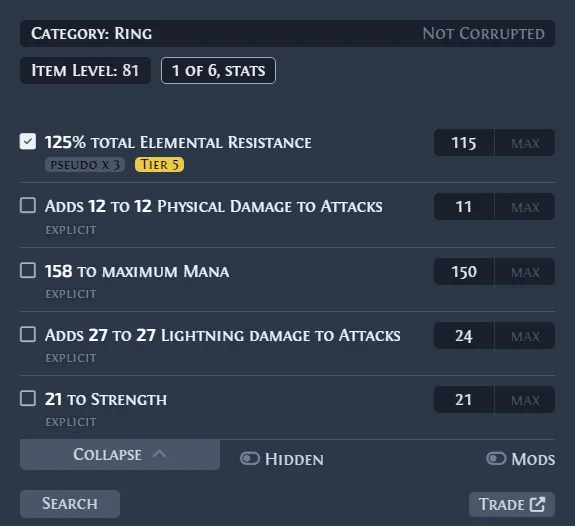
The search form is a starting point, not an appraisal engine. Exiled Exchange 2 can group several elemental resistance modifiers into a useful pseudo total, prefill a slightly wider roll range, or identify a unique variant. It cannot decide which modifier combination is valuable for every build or whether a seller's listed price represents a real market transaction.
Install and launch the overlay correctly
Before learning the hotkeys, make sure the application and game can see each other. Download the current Windows installer from the homepage download section, or choose the Linux or macOS build when appropriate. The installer file is served directly by the official GitHub project. Do not choose GitHub's Source code ZIP if you need a runnable Windows program.
The app is unsigned according to the official documentation, so the operating system can display a warning. Verify the release tag, filename, file size, and SHA256 before deciding whether to continue. This guide does not replace your own security review and does not claim that a file has been independently scanned.
- 1
Start Exiled Exchange 2
Launch the overlay and allow it to create its normal configuration. If another instance is already running in the system tray, opening a second copy may appear to do nothing.
- 2
Set the PoE 2 display mode
Use Windowed Fullscreen or Windowed mode. Exclusive Fullscreen is listed as unsupported because the overlay needs to render above the game window.
- 3
Match administrator privileges
Administrator rights are normally unnecessary. If Path of Exile 2 is running as administrator, Windows security boundaries mean the overlay needs the same privilege level to access the game window.
- 4
Launch Path of Exile 2
Open the game after the overlay is running. Wait for the application to identify the game window and confirm that the expected league and language data load.
Default Exiled Exchange 2 hotkeys
The default shortcuts cover the normal price-check workflow, a persistent search window, the widget overlay, and several common Path of Exile actions. Change any shortcut that conflicts with capture software, GPU utilities, chat tools, accessibility software, or global automation on your PC.
| Hotkey | Default action | When to use it |
|---|---|---|
| Ctrl + D | Open a normal item price check | The primary shortcut for reviewing an item and comparable trade listings |
| Ctrl + Alt + D | Open a persistent price-check window | Useful when the window should remain open while the mouse moves |
| Alt + W | Open the selected item on a wiki | Use when you need item background or mechanic details rather than a trade query |
| Shift + Space | Open the widget overlay | Access settings, widgets, league controls, and overlay tools |
| F5 | Go to hideout | Runs the configured hideout chat command |
| F9 | Exit to character selection | Runs the configured character-selection command |
| Ctrl + MouseWheel | Move through stash tabs | Disable Mousewheel Zoom in PoE 2 if the character camera also zooms |
Run your first price check
Move the cursor over an item in an inventory or stash location that supports copying item text. Press Ctrl + D. Exiled Exchange 2 should open a compact window containing the recognized item, possible filters, roll ranges, listing controls, and a results area. If nothing appears, test whether the game can copy the complete item description and then work through the troubleshooting guide.
For a unique item, confirm that the base item and any meaningful roll or variant are correct. For a gem, inspect level, quality, corruption state, and other fields that materially affect price. Currency searches tend to be more direct, but listings can change rapidly around league starts and trade API incidents.
Rare items need the most judgment. Select modifiers that buyers actually search together. Pseudo modifiers can summarize combined values such as total elemental resistance. Loosen exact roll values enough to find comparable items, but do not remove so many filters that the results describe a different item. Then compare several current listings rather than anchoring on the cheapest result.
Open settings and adjust the overlay
Press Shift + Space while Path of Exile 2 is open to access the widget overlay. The cog button opens settings. This is where you can change league, language, hotkeys, update behavior, search defaults, visual preferences, and debugging options. If you are moving from Awakened PoE Trade, read the migration guide before copying a configuration folder because the saved game window title must be updated for PoE 2.
Use the Debug tab when the application launches but a hotkey or league request fails. Logs are more useful than repeatedly opening the application because they distinguish a clipboard problem, trade service error, invalid configuration, network failure, and an ordinary shortcut collision.
Know what a listing can and cannot tell you
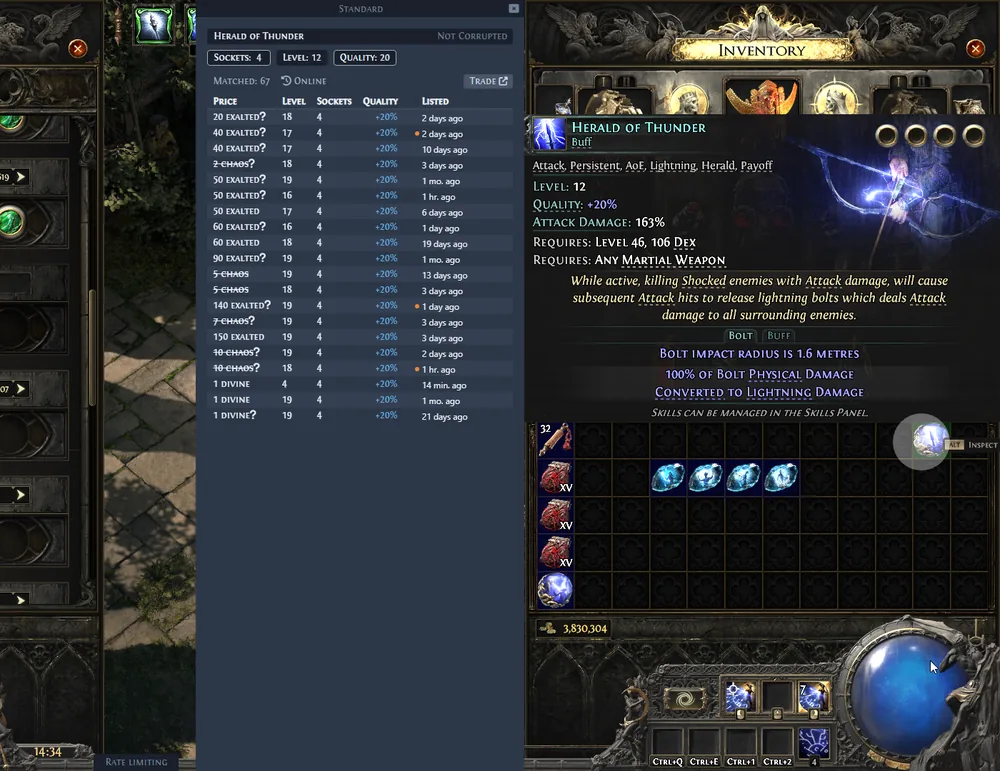
Trade listings are offers, not completed-sale records. A very low listing may already be sold, may be intentionally underpriced, or may be attached to an unavailable seller. A high price can come from a dump-tab name rather than an individually chosen price. Exiled Exchange 2 marks some listing states, but the player still needs to interpret them.
Treat the overlay as a fast query builder and comparison view. Check the age and seller status of listings, compare several similar items, consider whether the selected modifiers fit a real build, and adjust the query when the result set is too broad or too narrow. This produces a more defensible estimate than accepting one displayed number without inspecting the filters.
- AFK and offline indicators describe seller status, not item quality.
- A question mark beside a price can indicate pricing inherited from a stash tab name.
- The cheapest listing is not automatically the fair price.
- No result can mean the search is too exact, not necessarily that the item has no value.
- A large result set can mean the meaningful modifiers were not selected.
Exiled Exchange 2 Hotkeys for a First Price Check
The quickest way to learn how to use Exiled Exchange 2 is to test one standard inventory item. Ctrl + D opens a quick price-check search, Ctrl + Alt + D keeps the price-check window open, and Shift + Space opens the widget overlay and settings.
If the query is too broad, remove less useful modifiers; if no listing appears, widen roll ranges and confirm that the copied item text is complete. Hotkeys can conflict with capture tools, keyboard managers, or other overlays, so test one shortcut at a time.
| Action | Hotkey | When to use |
|---|---|---|
| Quick price check | Ctrl + D | Open a compact search for the item under the cursor. |
| Persistent price-check window | Ctrl + Alt + D | Keep the result visible while comparing listings. |
| Widget overlay and settings | Shift + Space | Change league, hotkeys, language, and display options. |
Ready to start
Download the latest Windows installer
The button waits 15 seconds and then opens the verified installer asset on the official GitHub Release.
Download Exiled Exchange 2 for Windows