
Is Exiled Exchange 2 Safe? Separate evidence from guarantees
The question “Is Exiled Exchange 2 safe?” has separate parts: whether the project published a download, whether your copy matches that release, and whether you accept the software's behavior and risks. Source and checksum checks help with provenance and file consistency, but cannot settle every security or account concern.
Kvan7 publishes the project's source repository and points users to its releases. The public owner, source history, and release assets are useful provenance, not a security certification. An MIT license does not show that every dependency or packaged executable received an independent review.
This site does not create, sign, host, scan, or modify the application files. Start from the official repository and follow its release link. A similar filename or familiar icon cannot establish that a file is genuine.
Start with the official Exiled Exchange 2 download source
Open the Kvan7 Exiled Exchange 2 repository, confirm its owner and name, then follow the documented release link or visit the official latest GitHub Release. Check the address itself; a search snippet or third-party button is weaker evidence.
Choose the packaged asset for your operating system. A Source code ZIP or TAR is repository source, not the normal Windows installer, portable executable, Linux AppImage, or macOS disk image. Match the package name and type to your platform on GitHub.
Avoid mirrors, shortened links, and forum attachments unless the project documents them as official. A mirror may be stale or altered. If your file came from somewhere else, delete it and start again from the project's release path.
- Check that the repository owner is Kvan7 and the project name is Exiled-Exchange-2.
- Open the release from the repository or its official documentation, not from an unrelated download page.
- Match the asset type to Windows, Linux, or macOS before downloading.
- Do not run source archives or an unexpected file just because its filename resembles an official release.
Verify the publisher, release tag, and downloaded file
Before opening a file, compare its release tag, full filename, package type, and size with the official asset. A mismatch may mean an incomplete download, old version, wrong platform, or unrelated copy. Stop; do not rename a file to make it look correct.
If a SHA-256 digest is published, calculate your local file's hash with a trusted tool and compare the complete value. A match shows that the file has the same digest as the release entry; it does not certify the original file or prove it has no vulnerabilities. Do not invent a digest or compare only a short prefix.
Use a digest shown with the same asset on the official release, not one copied from a forum. If the size or hash differs, delete the copy and download it again from GitHub. If the mismatch remains, pause and check current release notes or project issues.
- 1
Confirm the project
Check the repository owner and project name in the browser address and confirm that the release is linked from the project's own page.
- 2
Choose the correct package
Use the asset type for your operating system. A source archive is not the same thing as an installer or portable build.
- 3
Compare the asset details
Check the release tag, complete filename, file size, and SHA-256 value when one is published.
- 4
Stop on a mismatch
Do not bypass a hash mismatch or rename an unfamiliar file. Download again from the official release and recheck the published details.
Understand Windows SmartScreen and macOS security warnings
Windows SmartScreen may warn about an unfamiliar publisher or unsigned software. Project documentation says the app is unsigned, so a warning alone is neither proof of malware nor proof of safety. Verify the source and release asset before deciding what to do.
macOS Gatekeeper may also warn about software that is not signed or notarized as expected. Follow current project-specific instructions only after confirming the DMG came from the official release. Do not disable system protections globally because an unrelated site tells you to.
Read antivirus alerts and permission prompts carefully. Never provide game credentials or session data to a third-party installation page. If a warning names a threat or you cannot explain a requested permission, stop and seek a current project explanation.
- A publisher warning may reflect unsigned software or low reputation; it is not a pass or fail verdict on its own.
- Do not globally disable SmartScreen, Gatekeeper, or antivirus protection to make an installation proceed.
- Use only operating-system instructions documented for this project and release.
- Stop if the warning names a specific threat, the publisher differs, or the requested permissions are unexpected.
What official-source checks cannot tell you
A public source tree is not the same artifact as a packaged binary. Reviewing a release also involves dependencies, build settings, and release automation; public code does not prove that every binary received an independent audit.
A hash match or clean antivirus result cannot certify software as malware-free, predict every behavior, or validate future releases. Scanners have limits, and public scanning services may share uploaded files. Consider that policy before uploading private data.
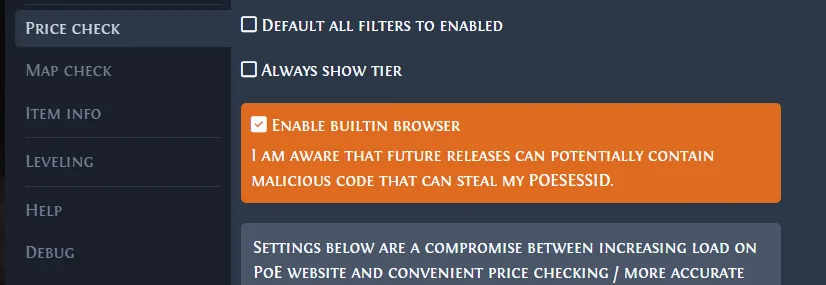
Exiled Exchange 2 is a third-party overlay, not a tool operated by Grinding Gear Games. Check current game terms and project documentation; no guide can guarantee that a publisher will never flag or restrict an account. Avoid automation or functions the publisher prohibits.
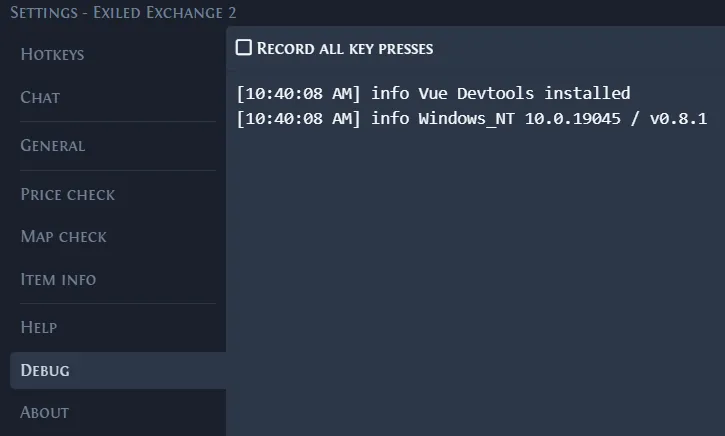
A screenshot, successful launch, or working price check shows only that an interface or workflow appeared to run. It is not a security audit or proof that every dependency is trustworthy.
A cautious installation checklist
Use a stop-or-continue checklist. Confirm you want Exiled Exchange 2, choose the package for your platform, open the official release, and compare its asset details with the file before opening it.
If the source, name, size, or digest differs, stop. Do not rename the file or follow a third-party workaround. Delete it, download again from GitHub, and recheck. Pause if an alert remains unexplained.
Follow platform-specific instructions and avoid unrelated permissions. See the Windows 11 setup guide or the platform sections on the download page. For a normal app or network problem, use the troubleshooting guide.
Record the release tag and asset you checked. Recheck every later download; an old installer in Downloads does not inherit verification from a newer release.
- 1
Reach the release from the project
Use the official Kvan7 repository or the project's documentation to open GitHub Releases.
- 2
Match the package
Confirm the platform, asset name, release tag, and size; compare SHA-256 when the release publishes a digest.
- 3
Pause if anything differs
Do not install a file with an unexplained mismatch, warning, mirror source, or unexpected permission request.
- 4
Recheck future downloads
A verification applies to the file and release you checked, not to every later update or copy on your computer.